
My Hotspot is offline, what do I do?
If your P100 is not working, follow the steps below to get it back online. If the below does not work, the quickest and easiest way to get it back online and earning again is to go to the Pisces Discord channel and open a support ticket in the ‘support-ticket’ section (see the menu items on the left hand side).
The most likely reason your hotspot is offline is because the dashboard / miner software is outdated (due to auto-update being switched off), and / or the storage disk is full. We will address both of these, as well as how to turn blockchain syncing off so that the disk does not get full again, below.
- Check which Dashboard you have installed on your P100:
First, find your hotspot’s IP address: log into your router (if you don’t know how, google ‘[name and model of your router] admin login’ and follow the instructions).
Once logged in to the router, you should see a list of all connected devices with information about the IP address. The P100 hotspot will be listed as ‘rapberrypi‘ – get the IP address for this device (it will look something like 192.168.1.109….or something similar).
Another way to find the IP address is to connect to the hotspot in the Helium app using bluetooth, and hit ‘run diagnostics report’…it will show the IP address in the diagnostics report.
Next, type the IP address into any browser. If nothing happens, try a different browser.
If your web interface looks like this, continue to step 3:
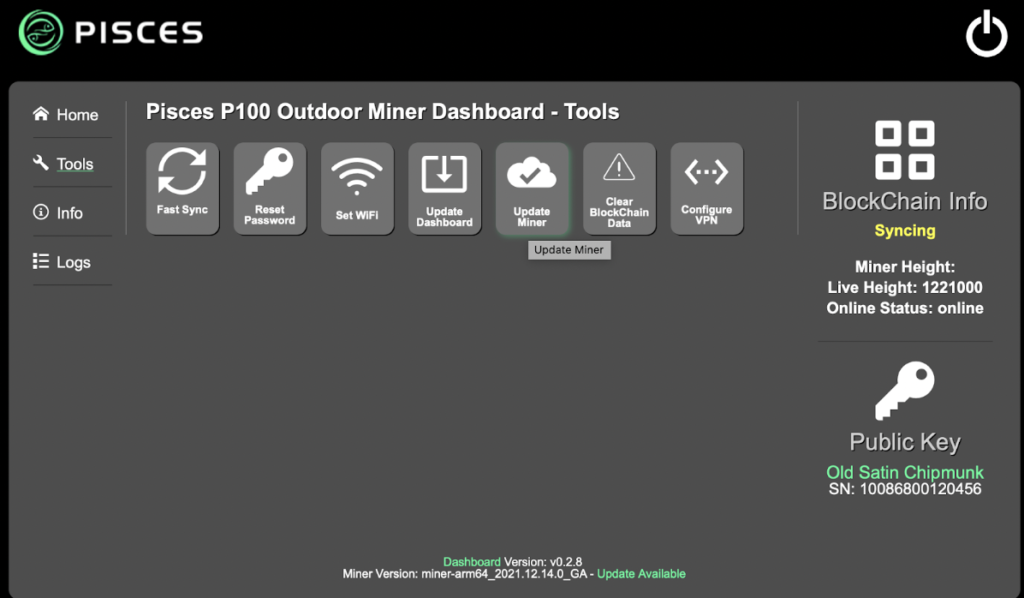
If it looks like this, go to step 2:
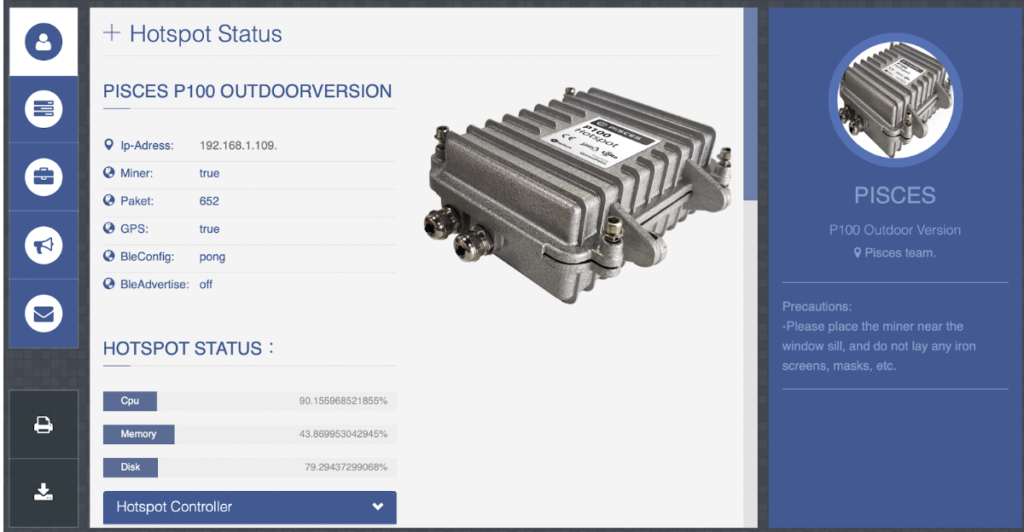
If it asks you for a username & password, continue to step 3.
- Update your dashboard:
It’s super important you follow the instructions below EXACTLY. It’s easy to mess up this process so be careful. Read the instructions in full, then start.
Open web browser and navigate to your browser by typing in the hotspot IP address. You should get to the dashboard you identified in step 1. Next, enter the following (blue italics) into your browser:
http://HOTSPOT_IP_ADDRESS/action.php?action=shell&cmd=wget https://raw.githubusercontent.com/briffy/PiscesQoLDashboard/main/install.sh -O – | sudo bash
!important! – Make sure you copy ALL of the text, from http:// all the way to and including | sudo bash and replace HOTSPOT_IP_ADDRESS with the IP address of your hotspot that you identified earlier. Taking the example IP address we gave in step one (192.168.1.109), you would type in exactly the following (all one line):
http://192.168.1.109/action.php?action=shell&cmd=wget https://raw.githubusercontent.com/briffy/PiscesQoLDashboard/main/install.sh -O – | sudo bash
Then hit enter on your keypad, ONCE!
!EVEN MORE IMPORTANT!
THIS UPDATE WILL TAKE A WHILE! Do not exit the page. Do not refresh the page. Do not get impatient. It will update in it’s own time. It usually takes about 10 mins, but might take up to 2 hours. Just leave it, for at least 30 mins to be safe. It may look like it’s finished after 10 mins, but it might still have work to do.
When the update is complete, you should see something like:
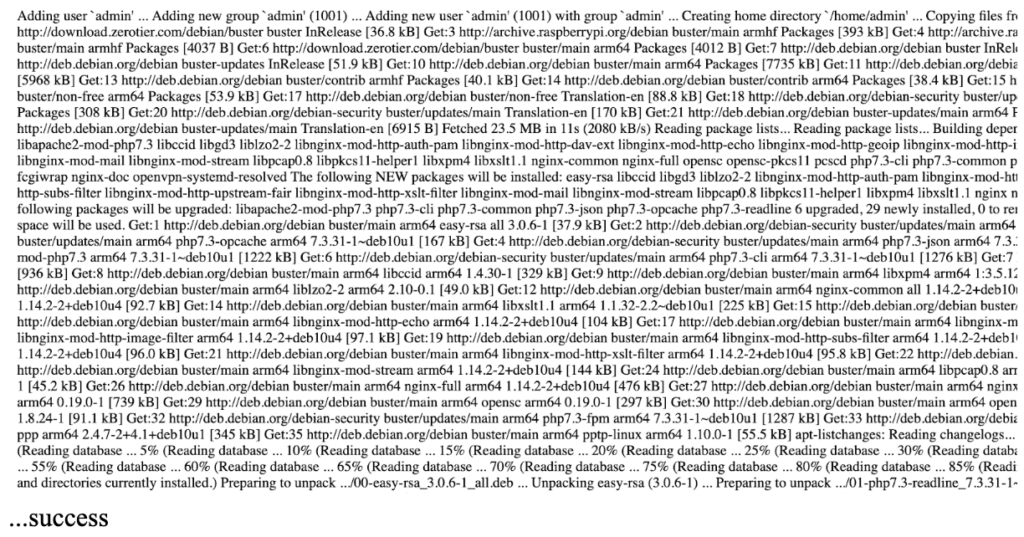
At this point you can re-type the hotspot IP address into your search bar: ‘https://HOTSPOT_IP_ADDRESS/’
You will likely get a “This site is not secure” banner when you first connect. This can safely be ignored. Hit show details / advanced, and ‘proceed to website’ / ‘visit this website’. If it doesn’t work, try a different browser.
Your Dashboard should now look like the other example picture in step 1.
- Use the dashboard to update the hotspot:
You will likely be asked for a username and password.
Username: admin
Password: either ‘admin’ (without the ”), ‘Futurenetworks17’ (without the ‘ ‘ ) or ‘futurenetworks17’ (without the ‘ ‘ ), or failing that ‘123[hotspot name 1]123[hotspot name 2]123[hotspot name 3]’…. e.g. the password for the hotspot ‘Basic Tin Chicken’ would be ‘123basic123tin123chicken’ …without the ”.
One of the 3 options will work. You should now be in!
Now check/do the following:
- Disk Space: On the home screen check ‘disk space’. If it says 100% (or close to), go to the ‘Tools’ tab on the left and hit ‘clear blockchain data’. Wait 30 mins. then update your miner docker & miner dashboard versions (see step 2 & 3 in this list).
- Update Miner: under the ‘Tools’ tab, hit ‘update miner’. You should see:
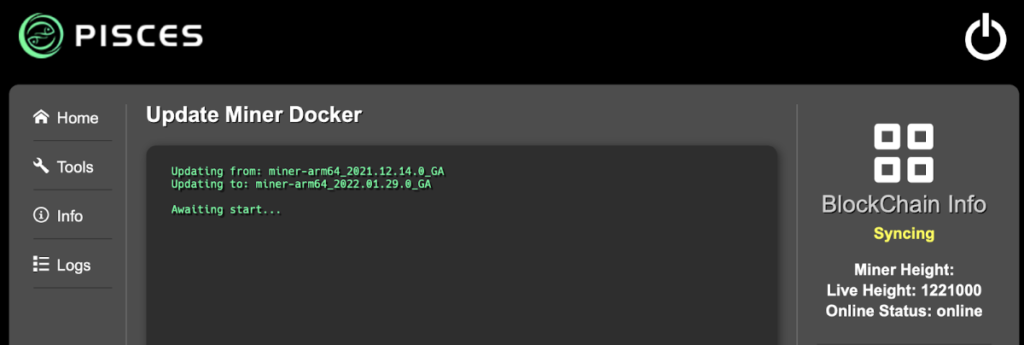
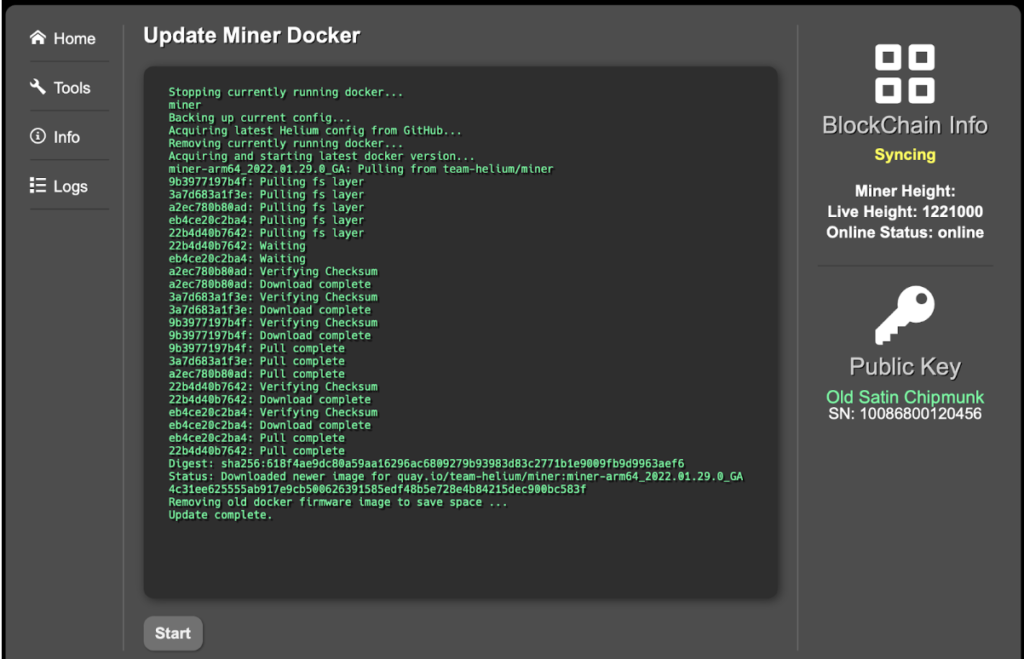
- Update Dashboard: Under the ‘Tools’ Tab, hit the ‘update dashboard’ button. Hit start, and wait around 10 mins until it shows ‘update complete’.
- Turn off blockchain Sync:
This step is probably the most complicated since it requires running a bit of code on the hotspot. But don’t worry, it’s not too hard, and even a total beginner with no coding experience (like me!) can do it. However, if you really struggle here, hang on until the week of Sept 5th – we will make a video to explain more easily.
We need to connect directly to the Hotspot, but not via the web interface. We will do something called ‘SSH’ing into the hotspot to establish a direct connection. Mac / windows 10 users, open ‘terminal’ programme and type :
ssh -l admin <your-miner-ip-here>
…note that the -'l' is a lowecase L.
Windows 7/8 users, you need to download a programme called ‘putty’, https://www.putty.org/. Type the hotspot IP address into Putty once installed to connect to the hotspot.
Now, in the terminal / putty, copy & paste the following (all in one line of code. If control/command + V doesn’t work to paste within the terminal, try right clicking):
sudo wget https://raw.githubusercontent.com/gompydo/PiscesDisableChainSync/main/apply.sh -O – | sudo bash
Please make sure you copy all of the above and paste it in, then hit enter
….Et voila. Wait for the command to run, and you should be good!
…Once you have tried all of the above, wait 24 hours to see if the Pisces P100 comes back online. If it doesn’t:
go to the Pisces Discord channel and open a support ticket in the ‘support-ticket’ section (see the menu items on the left hand side).